How To Make Visual Studio Code Look Amazing
Create a visually pleasing, consistent editor which prevents eye fatigue and keeps you productive

Visual Studio Code is an amazing editor with a large marketplace of extensions to tweak the editor to your use-cases. The marketplace currently offers 8.000+ themes to create a visually pleasing editor which is just right for you.
These themes help can adjust the colours of the interface, the icons used to display file types and more.
Today I want to highlight some of the most popular themes in the marketplace. Also I will share my personal theme set-up at the end.
Font & Ligatures
Having the right font can be surprisingly effective at increasing your productivity and reducing eye-fatigue. There are numerous fonts available which are made especially for developers.
These are usually monospaced fonts. A monospaced font is a font whose characters each occupy the same amount of horizontal space.
Another common addition is the addition of code-specific ligatures. Ligatures are characters consisting of two or more joined symbols. There are two reasons to use code ligatures.
- Our brains see a multi-character sequence such as
===as three separate characters. This makes our eyes scan all three characters and costs energy to process. - Certain character combinations allow for whitespace correction, this once again make the ligatures more clear to the eyes to scan and process.
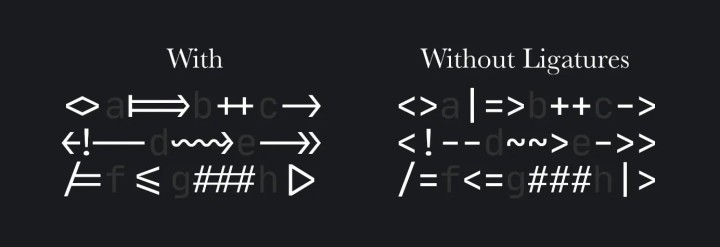
There are two very popular developer fonts I would like to highlight here
Both fonts are amazing in their own right, and are both free to use.
PersonaI preference: have a personal preference for JetBrains Mono. The letters have increased height, more clearcut shapes and is generally easier to read. I suggest you download and experiment with each fonts for some time to see if they are right for you.
Using your preferred font in VS Code
- Download the font from above links to your computer and install them locally. I would recommend installing the TTF fonts from the downloaded .zip file.
- Open your VS Code’s
settings.jsonfile through the command palette (⇧⌘P). Type in settings and select “Preferences: Open User Settings (JSON)”. - Add the following two lines of code to the settings.json to select your preferred font and enable font ligatures. This lets the font fallback on several monospace fonts.
"editor.fontFamily": "JetBrains Mono, Fira Code, Menlo, Monaco, 'Courier New', monospace",
"editor.fontLigatures": true
Icon Themes
Visual Studio Code shows an icon before every item in the folder explorer. This icon indicates the type of item. This way you can quickly distinguish the difference between folders, javascript files and html files for example.
These icons can be customised, there are many great packages to download from the marketplace depending on your preference. Let’s go through a couple of popular options.
1. Material Icon Theme - 14.5 million installs
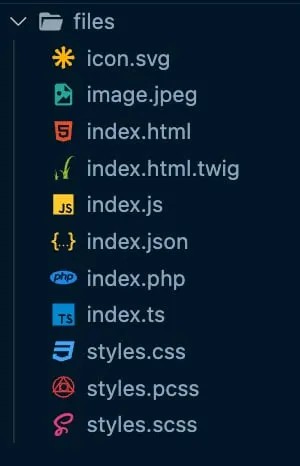
The material icon theme is the most downloaded extension on the VSCode Marketplace. It features a beautiful set of clear icons and deserves all the praise it gets.
2. Monokai Pro - 1.7 million installs
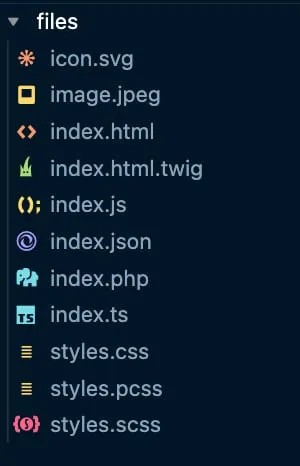
3. vscode-icons - 12.1 million installs
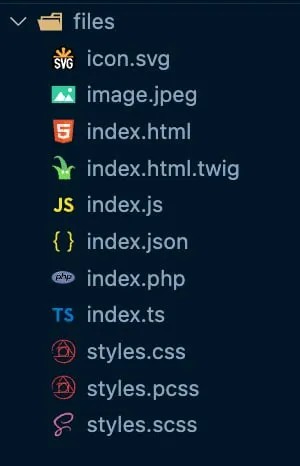
vscode-icons is an amazing set of icons which brings immediate clarity to your sidebar. I used this icon set from the first release of VSCode until about a month ago. If you’re unsure about which icon set to take, use this set. It blends in well in any color theme and every icon Is straightforward and clear.
4. City Lights Icon package - 96k installs
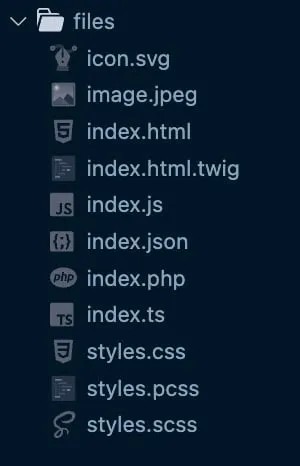
The monochrome variant is so clean and blends in really nice with the night owl theme in my opinion.
Colour Themes
Colour themes are by far the biggest visual change you can make to your editor and are highly personal. Nevertheless, I want to name a couple of great choices here that have gained a lot of popularity in the VSCode community.
1. One Dark Pro - 6.2 million installs
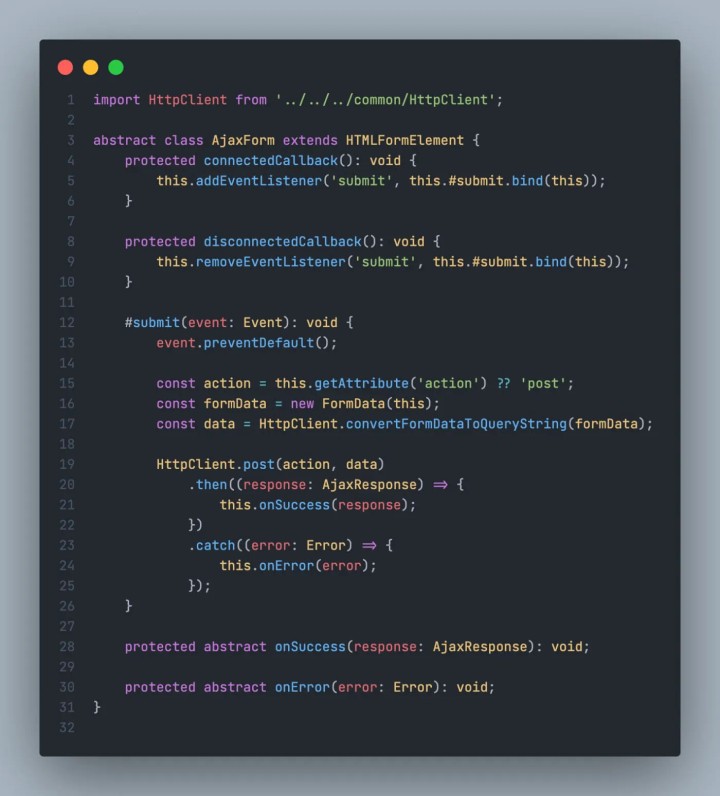
One Dark Pro is an exact match of the One Dark theme from Atom. It is the most popular theme on the VSCode marketplace. This theme brings nostalgia for a lot of developers who used Atom in the past.
This theme deserves its popularity. The colours are beautiful and do not distract you from the code.
2. Github Theme - 5.4 million installs
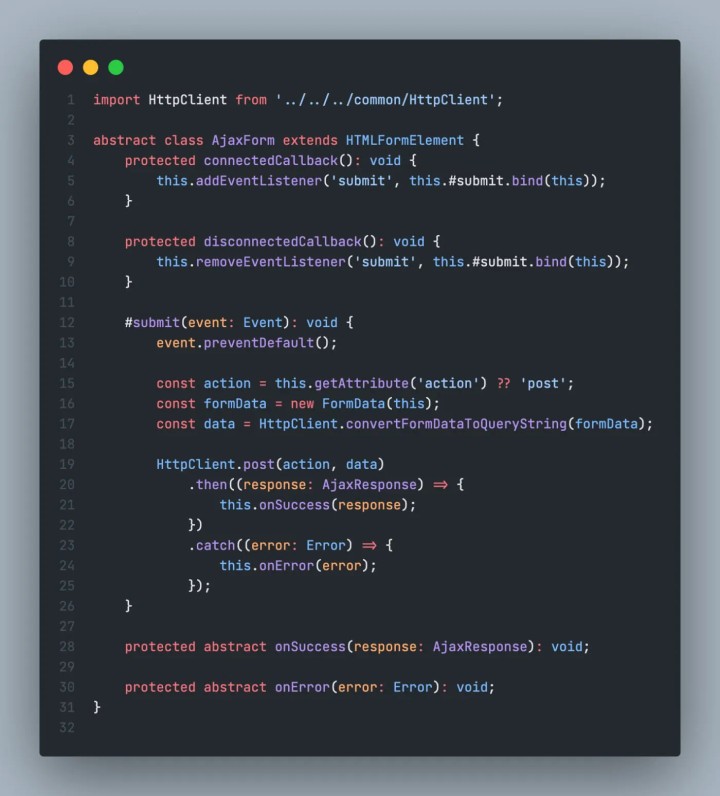
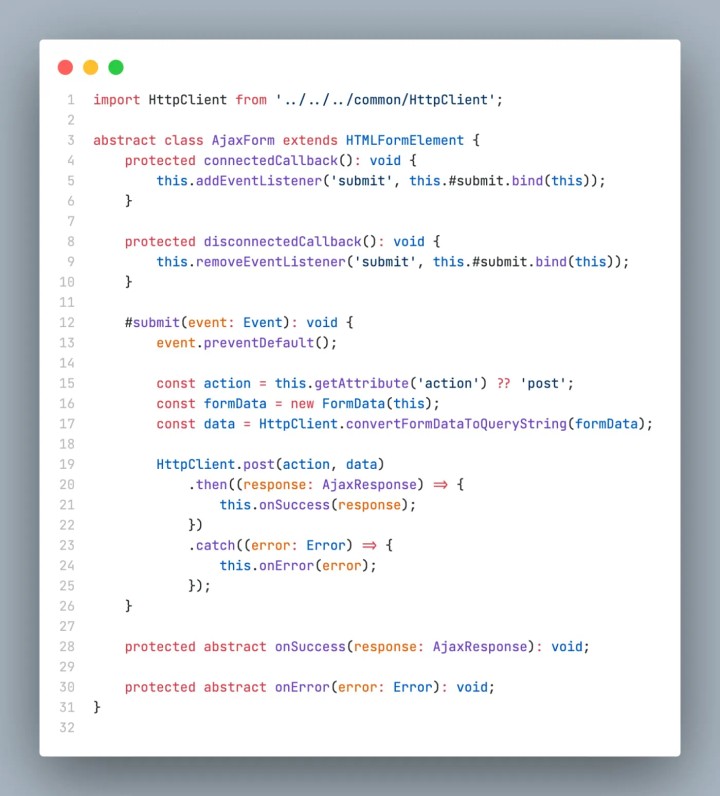
GitHub released a set of their own themes. They have a dark and light theme, which both have a default, high contrast and colour-blind mode.
If you’re a long-time GitHub user and love their colour theme then you should definitely try out this theme.
3. Dracula Official - 4.4 million installs
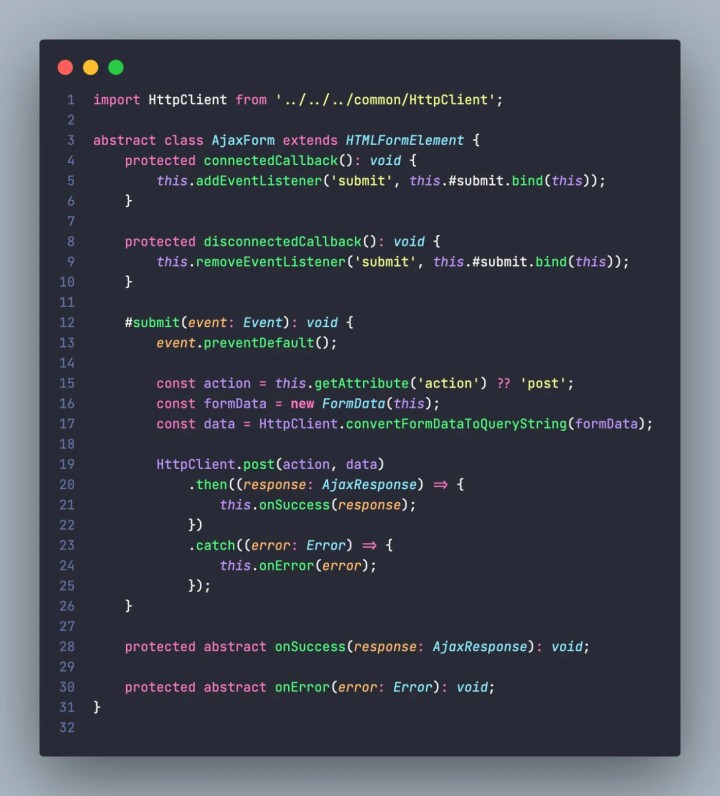
Dracula Official is a very popular theme across many different editors, shells and other tools. The idea is to create a consistent colour theme in all of your workflows. It’s a beautiful dark colour theme inspired by the night (hence the vampire theme) :)
For more info on this theme check their website.
4. Night Owl - 1.6 million installs
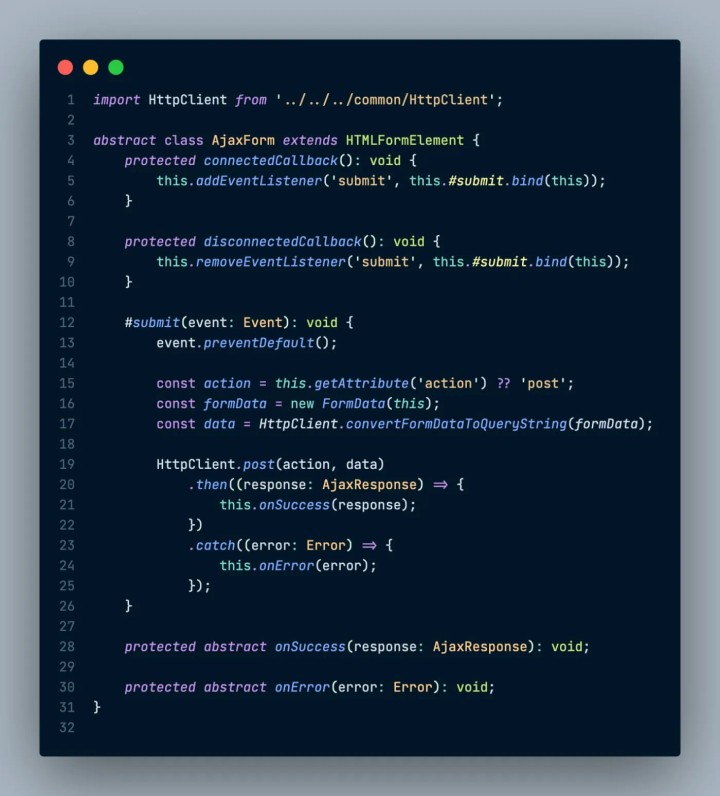
Night owl is a beautiful dark theme that was especially made for people coding late into the night. According to the author: “Colour choices have taken into consideration what is accessible to people with colour-blindness and in low-light circumstances. Decisions were also based on meaningful contrast for reading comprehension and for optimal razzle dazzle.”
I only discovered this theme a month ago and have been using it ever since.
5. One Monokai - 1.5 million installs
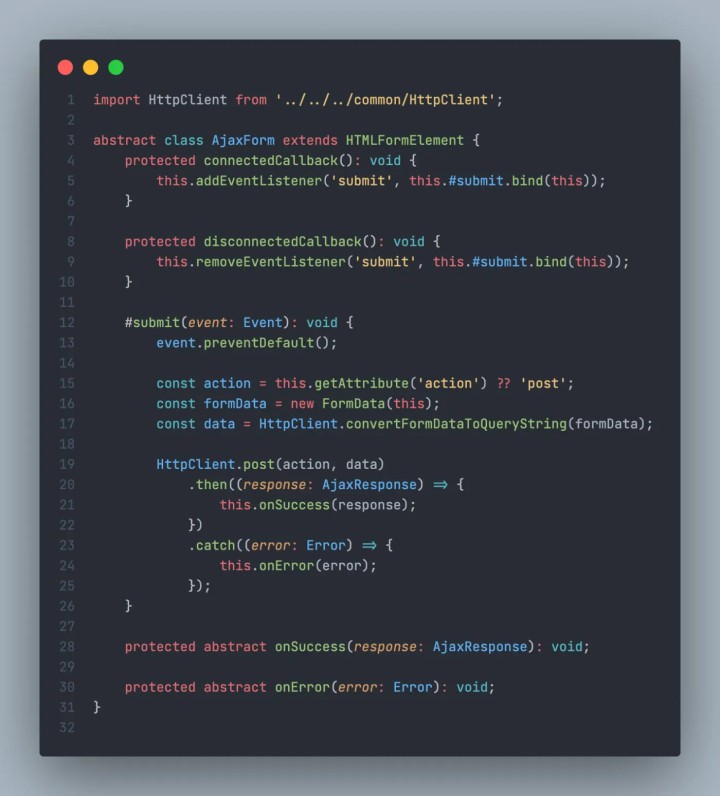
The One Monokai theme is a cross between the One Dark Theme and Monokai.
6. Shades of Purple - 1.3 million installs
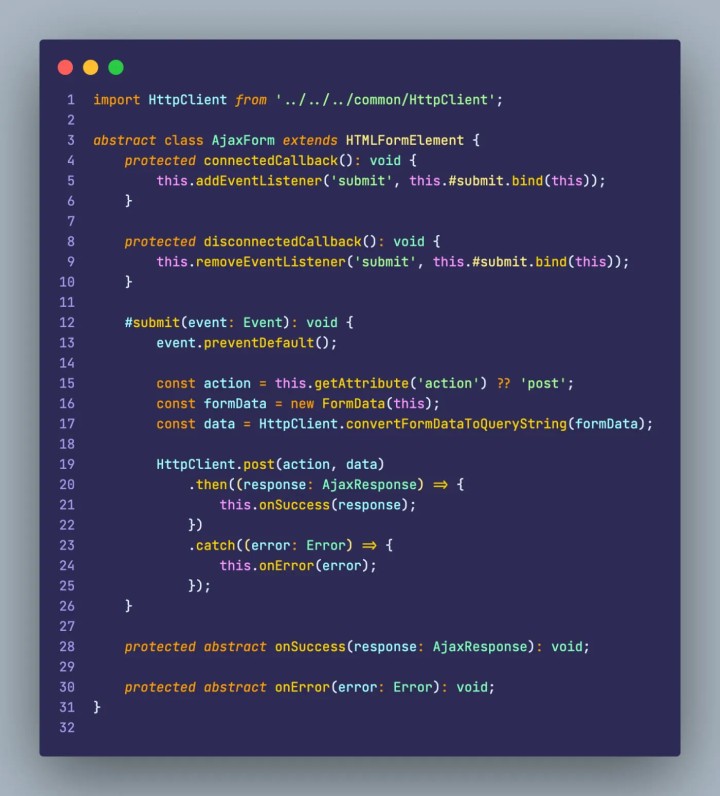
Shades of Purple is a beautiful theme featuring bold shades of purple. The code basically jumps off your screen with this theme. I know several people who swear by this theme. I’d recommend you give it a shot.
7. SynthWave ‘84 - 1 million installs
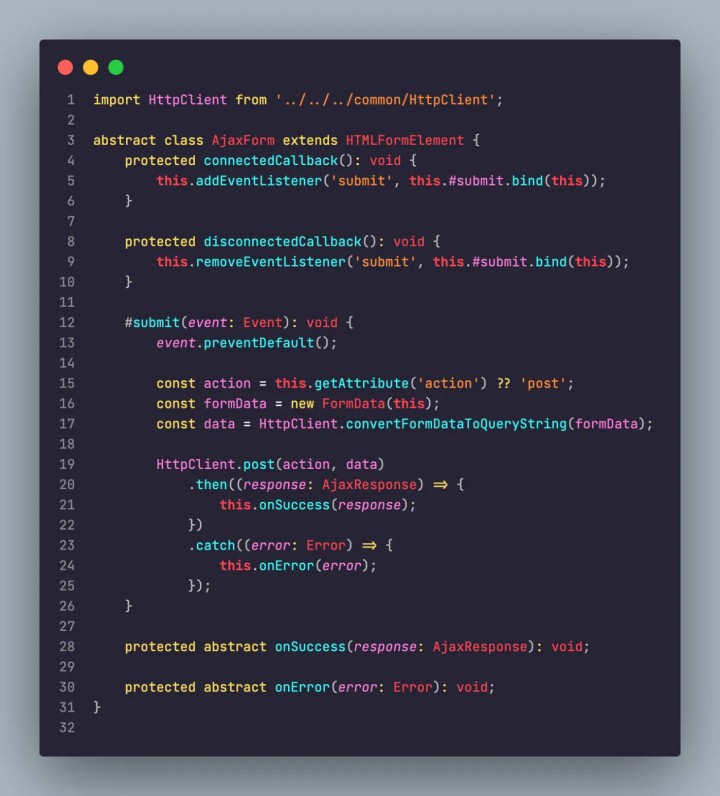
This creative theme is influenced by music and the cover artworks of Synthwave bands like Timecop 1983 FM-84, and The Midnight.
It’s very radiant and the code literally glows on your screen. If you’re into the 80’s style, this theme might be right up your alley!
8. Tokyo Night - 650k installs
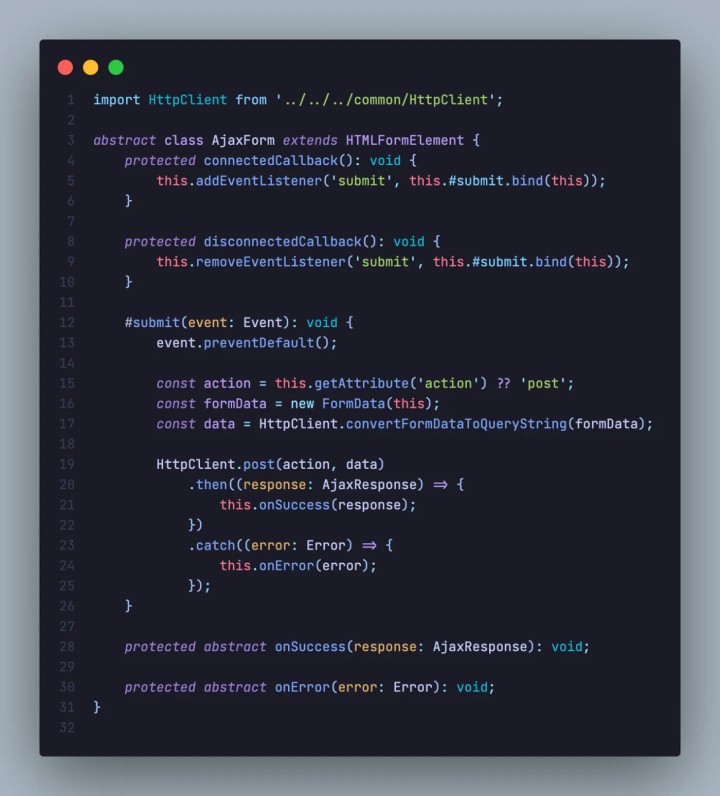
A clean Visual Studio Code theme that celebrates the lights of Downtown Tokyo at night. This theme is very clean and looks great.
9. Kanagawa - 100k installs
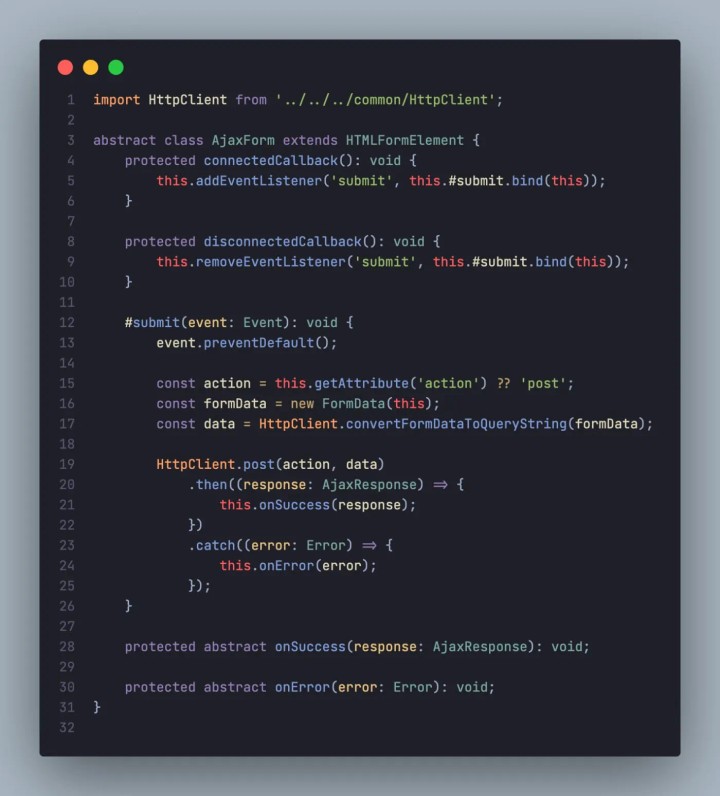
This is a VSCode port of the KANAGAWA.nvim colorscheme. It is a dark theme inspired by the colors of the famous painting by Katsushika Hokusai.
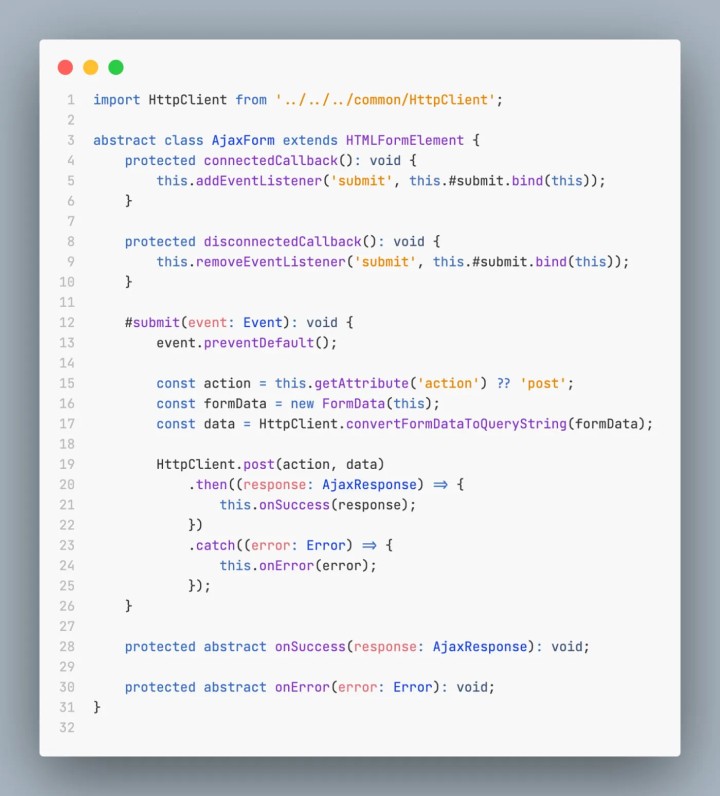
10. Bracket Lights Pro - 65K installs
Conclusion
Visual Studio Code has plenty of customization options to make it more aesthetically pleasing for anyone. Let me know in the comments which set-up you liked best or which you are already running!
VS Code Setup Pack
If you want a modern, audited VS Code setup that reflects this 2026 thinking, with a settings.json, keybindings, extension configuration all baked in. I've created a free setup pack for you. It's built on the principles of this post: only extensions that add genuine value.